

EN
EN
Doinsport tailored to your brand: discover our advanced white-label solutions
At Doinsport, we believe that your management software should adapt to your business, not the other way around. That’s why we’ve launched our latest feature: advanced back-office customization designed to fit your club's unique workflow.

Doinsport tailored to your brand: discover advanced customization
Say goodbye to a one-size-fits-all interface. Today, your Doinsport back-office can reflect your club, your sport, and your workflow: 10 ready-to-use themes and 57 settings, from court booking slots to your login page button.
At Doinsport, we believe that a great management tool should adapt to you, not the other way around. This is exactly the spirit behind our latest feature: advanced customization for your back-office.
10 themes to set the tone in one click
The starting point is the theme. Choose the one that matches your club's identity; it applies instantly and live, with no page reload required:
Doinsport: our original brand identity, in familiar blue.
Light: bright and clean, featuring a green accent.
Dark: sleek and easy on the eyes.
Modern: understated and professional.
Colorful: warm, with a dominant burgundy tone.
Compact: maximizes on-screen information.
Padel: court blue, clear glass walls, and navy header.
Tennis: court green with clay-court ochre touches.
Neon: dark background with vibrant accents for a striking look.
Custom: your own theme, fully configurable.
Whether you want a clean look for daily operations or a high-impact style for an event, there is a theme for every occasion.
57 settings, organized into three workspaces
Beyond themes, advanced settings give you control over almost every interface element. They are grouped into three clear sections.
1. The Scheduler (30 settings): everything displayed on the booking grid
This is the heart of your club's operations, and therefore the most feature-rich. You can adjust:
Time slots and grid: color of upcoming days, past days, elapsed hours of the day, open slots, closed slots, grid lines, and the time column.
Court columns: minimum width, header style, background and text color for court names, and the "show all without scrolling" option to view all your courts at a glance.
Booking cards: background and shape of the cards, displayed name, waiting list icon, participant count, and the option to hide borders, times, or payment status.
Display and shortcuts: full-screen scheduler, date and time display, hide date selector, hide activity filters, zoom buttons or occupancy rate, show full day without scrolling, and grid zoom.
2. The Application (19 settings): all screens outside the scheduler
This section styles the rest of the software for perfect visual consistency:
Surfaces: page title card, cards, modals and menus, borders and dividers, application background.
Text and accent: page text color, accent color, and software font.
Buttons, fields, and icons: secondary buttons, input fields, action icons.
Tables: styling for your data tables.
Menu and header: sidebar background, header background, header and menu text color, icon color, and the option to hide the Doinsport logo.
Loading: colors for loading screens.
3. The Login Page (7 settings): the first screen your customers see
This is often your first impression. You can fully customize:
the page layout,
the page background, brand panel, form card, welcome title, and login button,
the form illustration.
All the way to a fully white-labeled experience
By combining the customization of the login page, colors, font, header, menu, and the option to hide the Doinsport logo, you can take it to the next level: present your customers and staff with an interface styled entirely in your club’s brand colors, consistent from the login screen down to the last data table.
A cleaner interface for a better daily workflow
Beyond aesthetics, this customization has a practical impact on your daily operations. A more structured interface, using the right colors and displaying the right information at the right place, means saved time and less eye strain for your staff. You can also declutter the screen to focus on what matters, or display the scheduler in full-screen mode on a tablet or monitor at the reception desk.
And since everything updates live, you see the results of each adjustment instantly.
How to get started?
Advanced customization is available via our dedicated Chrome extension, "Doinsport - Advanced Customization", which can be installed in less than a minute from the Chrome Web Store.
Already using Google Chrome?
Install the extension in one click, then open your back-office: a new customization tab will appear. All you have to do is choose a theme and fine-tune the settings that matter to you.
Not on Google Chrome yet?
The extension runs exclusively on the Google Chrome browser, but don't worry: switching is easy, free, and only takes a few minutes. Just follow these three steps:
Download Google Chrome. Go to google.com/chrome and click on "Download Chrome". The installer file will download automatically.
Install Chrome on your computer. Open the downloaded file and follow the installation wizard. Once complete, launch Google Chrome. You can set it as your default browser if you wish, but it is not required.
Download and install the Doinsport extension. From Google Chrome, open our extension page on the Chrome Web Store, click "Add to Chrome", and confirm. You are all set.
Now, simply open your Doinsport back-office in Chrome: your new customization tab is waiting for you.
Good to know: the extension is compatible with the Google Chrome browser.
We designed this feature to offer you an even more seamless and tailored management experience. Now, it's your turn to create the interface that fits your club perfectly.
Doinsport tailored to your brand: discover advanced customization
Say goodbye to a one-size-fits-all interface. Today, your Doinsport back-office can reflect your club, your sport, and your workflow: 10 ready-to-use themes and 57 settings, from court booking slots to your login page button.
At Doinsport, we believe that a great management tool should adapt to you, not the other way around. This is exactly the spirit behind our latest feature: advanced customization for your back-office.
10 themes to set the tone in one click
The starting point is the theme. Choose the one that matches your club's identity; it applies instantly and live, with no page reload required:
Doinsport: our original brand identity, in familiar blue.
Light: bright and clean, featuring a green accent.
Dark: sleek and easy on the eyes.
Modern: understated and professional.
Colorful: warm, with a dominant burgundy tone.
Compact: maximizes on-screen information.
Padel: court blue, clear glass walls, and navy header.
Tennis: court green with clay-court ochre touches.
Neon: dark background with vibrant accents for a striking look.
Custom: your own theme, fully configurable.
Whether you want a clean look for daily operations or a high-impact style for an event, there is a theme for every occasion.
57 settings, organized into three workspaces
Beyond themes, advanced settings give you control over almost every interface element. They are grouped into three clear sections.
1. The Scheduler (30 settings): everything displayed on the booking grid
This is the heart of your club's operations, and therefore the most feature-rich. You can adjust:
Time slots and grid: color of upcoming days, past days, elapsed hours of the day, open slots, closed slots, grid lines, and the time column.
Court columns: minimum width, header style, background and text color for court names, and the "show all without scrolling" option to view all your courts at a glance.
Booking cards: background and shape of the cards, displayed name, waiting list icon, participant count, and the option to hide borders, times, or payment status.
Display and shortcuts: full-screen scheduler, date and time display, hide date selector, hide activity filters, zoom buttons or occupancy rate, show full day without scrolling, and grid zoom.
2. The Application (19 settings): all screens outside the scheduler
This section styles the rest of the software for perfect visual consistency:
Surfaces: page title card, cards, modals and menus, borders and dividers, application background.
Text and accent: page text color, accent color, and software font.
Buttons, fields, and icons: secondary buttons, input fields, action icons.
Tables: styling for your data tables.
Menu and header: sidebar background, header background, header and menu text color, icon color, and the option to hide the Doinsport logo.
Loading: colors for loading screens.
3. The Login Page (7 settings): the first screen your customers see
This is often your first impression. You can fully customize:
the page layout,
the page background, brand panel, form card, welcome title, and login button,
the form illustration.
All the way to a fully white-labeled experience
By combining the customization of the login page, colors, font, header, menu, and the option to hide the Doinsport logo, you can take it to the next level: present your customers and staff with an interface styled entirely in your club’s brand colors, consistent from the login screen down to the last data table.
A cleaner interface for a better daily workflow
Beyond aesthetics, this customization has a practical impact on your daily operations. A more structured interface, using the right colors and displaying the right information at the right place, means saved time and less eye strain for your staff. You can also declutter the screen to focus on what matters, or display the scheduler in full-screen mode on a tablet or monitor at the reception desk.
And since everything updates live, you see the results of each adjustment instantly.
How to get started?
Advanced customization is available via our dedicated Chrome extension, "Doinsport - Advanced Customization", which can be installed in less than a minute from the Chrome Web Store.
Already using Google Chrome?
Install the extension in one click, then open your back-office: a new customization tab will appear. All you have to do is choose a theme and fine-tune the settings that matter to you.
Not on Google Chrome yet?
The extension runs exclusively on the Google Chrome browser, but don't worry: switching is easy, free, and only takes a few minutes. Just follow these three steps:
Download Google Chrome. Go to google.com/chrome and click on "Download Chrome". The installer file will download automatically.
Install Chrome on your computer. Open the downloaded file and follow the installation wizard. Once complete, launch Google Chrome. You can set it as your default browser if you wish, but it is not required.
Download and install the Doinsport extension. From Google Chrome, open our extension page on the Chrome Web Store, click "Add to Chrome", and confirm. You are all set.
Now, simply open your Doinsport back-office in Chrome: your new customization tab is waiting for you.
Good to know: the extension is compatible with the Google Chrome browser.
We designed this feature to offer you an even more seamless and tailored management experience. Now, it's your turn to create the interface that fits your club perfectly.
Similar articles
Oct 22, 2026
How much should you charge per hour for padel? 2026 market rates, peak vs. off-peak pricing, and memberships: the complete guide to setting your club's rates.

Oct 14, 2026
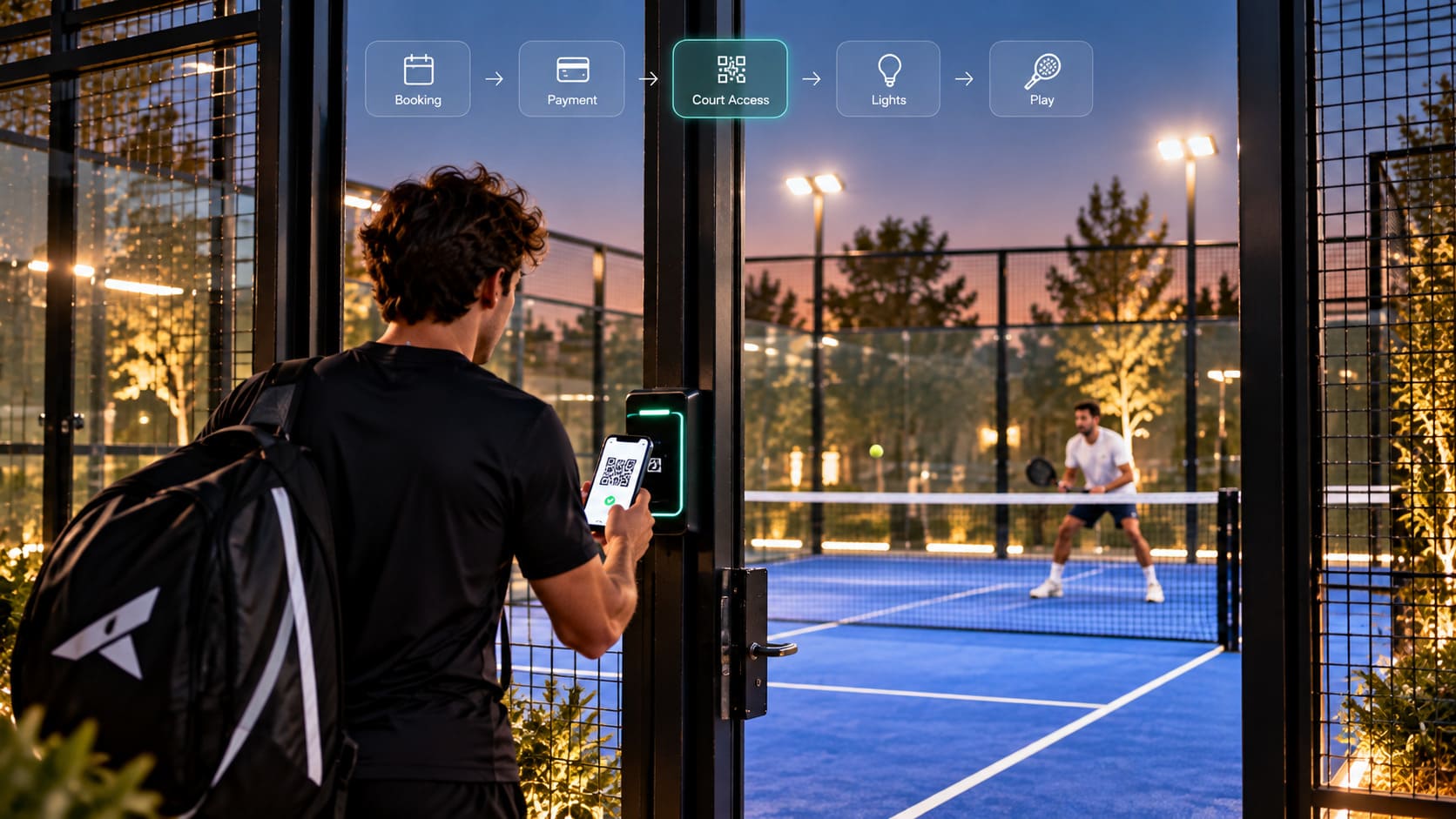
How Does Access Control Work for Padel Clubs? QR Codes, RFID, Smart Locks, Court Lighting, and Bookings Explained.

See Doinsport in action
Ready to grow your padel or tennis club?
Join over 1,000 clubs that run on Doinsport. Book a free demo and see what it can do for your club.
We're here to help.


See Doinsport in action
Ready to grow your padel or tennis club?
Join over 1,000 clubs that run on Doinsport. Book a free demo and see what it can do for your club.
See Doinsport in action
Ready to grow your padel or tennis club?
Join over 1,000 clubs that run on Doinsport. Book a free demo and see what it can do for your club.
We're here to help.